Technical Chats are available to all Zone members. Join one to get immediate answers to your Zone technical questions from our volunteer Ztech staff. To participate in a technical chat :
- On your selected game page, click Chats & Events on the navigation bar and click Chat Rooms on the Table of Contents located on the left.
- Click Zone Online Assistance to bring up the Zone Sysops and Technical Chats page.
- Read the rules and procedures.
- In the Technical Chat section, click the "I ACCEPT the above terms . Let me go to chat !" button and get ready to submit your questions!
- On your selected game page, click Chats & Events on the navigation bar and click Chat Rooms on the Table of Contents located on the left.
- Click Zone Online Assistance to bring up the Zone Sysops and Technical Chats page.
- Read the rules and procedures.
- In the Sysop Chat section, click the "I ACCEPT the above terms . Let me go to chat !" button and get ready to submit your questions!
Public Chats are available to everyone who wants to participate or observe. There are two ways to chat publicly: When you're in a game room or at a game table, type your message in the text box at the bottom of the active window and press ENTER or click the Send button. Your message will appear in the Chat window and will be visible to other players and watchers in that room or in that game. Note that if you uncheck the “Kibitz” check box while playing a classic card or board game, people outside your game will not be able to look in to watch. At any page on the Zone, click Chats & Events on the navigation bar to go to the Chat page. The Chat page is divided into a Zone Online Assistance section (discussed above), Zone Wide Chat, and individual game category chats. Zone Wide Chat
Zone Wide Chat is where you can meet anyone and everyone. It's a common room where people can meet and discuss a variety of topics. There are also individual game category chat rooms, such as adventure, action, strategy, and much more. For example, if you entered the strategy room, you'll most likely encounter discussions on Age of Empires, Ants, MechWarrior, etc. Private Chats
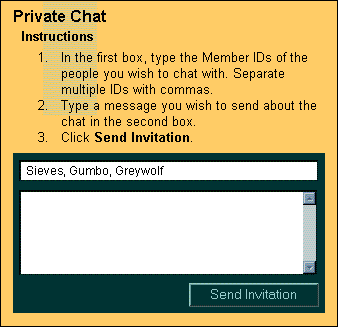
Private Chats are available and visible only to you and one or more invitees. There are three ways to chat privately: Use ZoneMessage :
- Click the ZoneMessage bar over any Zone page Table of Contents, or double-click a Member ID in your ZoneFriends window.
- In the "Player Name" box, type the Member ID of the person you want to send the message to. If you clicked a Member ID from ZoneFriends, it will already show up in this box.
- Clicking the ZoneMessage Chat button will create a private chat room and send an automatic invite to the person in the Player Name box.
To see if Friends are currently on the Zone, you'll normally want to use the ZoneFriends window. If you've closed this window, you can reactivate it by clicking the "Z" icon next to the clock in your taskbar. You can get to full instructions from Help on the ZoneFriends menu bar. ZoneFriends allows you to easily add members to its contact list, but in a game room or chat room, you may want to use the following shortcut method:
- Right-click the player's Member ID in the user list, which is on the right side of the window.
- In the drop-down menu that appears, click the check box next to "Friend." The Member ID is now added to your ZoneFriends list, and it will move to the Friends category at the top of the user list as well (unless they've left the game or chat room).
- You can click the "Friend" box to deselect it, which removes the player from your list of friends.
- In the user list of a game or chat room, find the player you want to ignore and right-click their Member ID.
- Click Ignore in the drop-down box; the player's Member ID will be crossed out in the user list. You can toggle this preference on or off. (Note that it is possible to ignore people in your Friends category.)