|
Zone Profiles is a great way to learn more about players on the Zone. You can find out their favorite games, their interests, where they're from and much more. All players, including YOU, can create your own unique profile on the Zone. Or how about being part of a team or creating a new one? If you're a team player, check out the Team Profiles. You can petition to be a member of a team or start your own!
If you already have a Zone name, your name will automatically be listed on the Zone Profiles section. There are two main ways to use profiles. You can create or search profiles for individual players or for teams. To begin, click Profiles in the navigation bar on the Zone home page and the Internet Gaming Zone Profiles window will appear. You can also access Profiles around the Zone from Zone Messages, Zone Friends, game rooms, and chats. Just right-click the Zone name and select View Profiles.
Individual Player Profiles
Under the Players tab in the Profiles window is a navigation bar which allows you to do the following: - Search: Here you can search player names.
- Info: Here you can read player profile information. You can also add a player to your ZoneFriends lists and send them a ZoneMessage.
- Rating: Displays a selected player's game ratings.
- Affiliations: Shows if the player belongs to any teams.
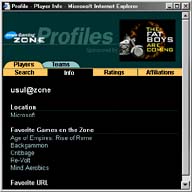
Here is an example of Player Profile Information:
|
|
|
When you search for usul@zone, the information that usul@zone entered will appear, such as where the Zoner is from, favorite games on the Zone, and favorite URL.
|
Creating Your Own Unique Profile
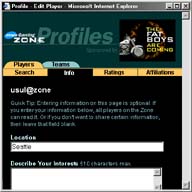
There are two ways to edit your profile. If you are logged onto the Zone and access Profiles, your profile will appear as the default. Click Edit and follow steps 3 through 5 below.
If you are not logged onto the Zone and access Profiles, the search feature will appear as default.
|
|
|
1. Click Search and enter your Zone name and click Go.
2. In the Results section, click your Zone name and click Edit.
3. Enter your Zone name and password, and click Submit.
4. Your profile page will appear and you can enter any information in the available fields.
5. Click Save to submit the information or click Cancel.
|
Team Profiles
Team profiles are created and owned by one team member. If you have five players on your team, designate one of your teammates to be the owner of the team's profile.
Under the Teams tab in the Profiles window is a navigation bar which allows you to do the following: - Search: Here you can search team names and the types of games those teams play.
- Info: Here you can read a team's profile information, including team description and preferred games. You can also petition or withdraw from the team.
- Ratings: Displays a selected team's games ratings.
- Members: Lists all the members of a selected team. Team owners can accept petitions or delete members here.
- Create: Lets you create a new team profile.
Take a look at the Team Profile created by the United Pilots Alliance! They did a great job creating their team profile and their members have excellent individual player profiles!
How to Find and Learn More About Teams
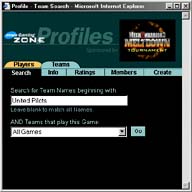
Here's how to find the United Pilots Alliance team, or to search for any team profile created on the Zone:
|
|
|
1. Click the Team tab.
2. Type the name of the team in the “Search for Team Names beginning with:” field and (this is optional) select type of game the team plays from the drop down menu.
3. Click Go.
4. Teams with the same or similar names will appear. Click the name of the team to learn more about their team description, games they play, and their favorite URL.
|
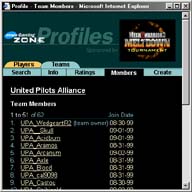
You can also look up all the individual team members.
|
|
|
1. When you've found the team profile, click Members on the navigation bar.
2. A list of the team members will appear.
3. Click the individual member names to learn more about each player.
|
How to Create A Profile for Your Team:
- Click Create in the navigation bar.
- Enter your Zone name, password, new team name, and click Submit
- Enter information about your team in the available fields.
- Click Save to submit the information you entered, or click Clear to start over again.
To Edit Your Team's Profile:
The team owner is the only person who can modify your team's profile. - Click Teams tab and click Search.
- Enter your team's profile name and (this is optional) select the type of game your team plays and click GO.
- Click your team's name in the Results section and your team profile will appear.
- Click Edit to change any information about your team. Note: If you change “Team Owner” field to a different name, you will lose ownership of this team. To transfer ownership, enter the exact Zone Name of another team member.
Allow Members to Join Your Team
Players can petition the team owner to be part of the team. Only the team owner of the team can approve petitions. - Click Teams tab and click Search.
- Enter your team's profile name and (this is optional) select the type of game your team plays and click GO.
- Click your team's name in the Results section and your team profile will appear.
- Click Members in the navigation bar and the Members page appears.
- Click Review Membership Petitions; there will be a notice letting you know how many petitions there are.
- Enter your Zone name and password, and click Submit. The petitioning for membership window will appear.
- For each player listed, click either Grant or Deny and click Update Selected Petitions. If you click Cancel, your changes will not be made.
To Petition to be a Member of a Team:- Click Teams tab and click Search.
- Enter the team's profile name and (this is optional) select the type of game the team plays and click GO.
- Click Petition for Membership.
- Enter your Zone name and password and click Submit. Your petition will be sent to the team owner for review and the owner has 30 days to either grant or deny you membership into the team.
To Withdraw from a Team:- Click Teams tab and click Search.
- Enter your team's profile name and (this is optional) select the type of game your team plays and click GO.
- Click Withdraw from Team.
- Enter your Zone name and password and click Submit. Note: If you are the team owner, you can transfer ownership by entering the exact Zone Name of another team member. If you decide to withdraw from the team by removing yourself from the Members list, the ownership transfers to the next longest standing member. If you are the last member, then the team will be removed.
To Delete a Team:- Only the current team owner can delete a team from Team Profiles.
- Click Teams tab and click Search.
- Enter your team's profile name and (this is optional) select the type of game your team plays and click GO.
- Click Members in the navigation bar and the Members page appears.
- Click Edit Membership.
- Enter your Zone name and password and click Submit.
- Select Remove next to each team member's name including yourself, and click Delete Selected Members.
Note: If you remove your Zone name first before your team members, the team will automatically be transferred to the next member with the longest team membership, and the team will not be deleted.
|